
Connect your first bot
Create one account, connect to a test server, send chat, and stop the bot.
This tutorial uses the desktop app and its integrated SoulFire server. Allow about ten minutes after installation. You will finish with one bot that you can start and stop yourself.
Before you start
- Install the desktop app.
- Start a Java Minecraft server that you control.
- For this tutorial, use a local offline-mode test server at
127.0.0.1:25565. - Keep the Minecraft server console or a normal player connected so you can see chat.
An offline account does not authenticate with Microsoft. It cannot join an online-mode server.
For that target, import a Microsoft account and use its name instead of DocsBot_1.
1. Open the integrated server
Open SoulFire. Select Integrated server (local). Wait until the app shows the server pages and the Instances entry. The Demo server option only shows sample data. It cannot connect real bots.
2. Create a tutorial instance
Open Instances. Select Create Instance.
Name the instance Docs tutorial, then open it.
An instance stores the accounts, target settings, proxies, plugins, and scripts for this run.
3. Set the Minecraft target
Open Bot Settings. Set the server address to 127.0.0.1:25565.
Choose a protocol version compatible with your Minecraft server.
Keep the join delay and timeout defaults for this first run.
Do not import proxies or enable extra automation yet.
127.0.0.1 refers to the computer that runs the SoulFire backend.
For a remote backend, enter a Minecraft address reachable from that remote computer.
4. Add exactly one offline account
Open Account Settings. Use the offline account generation dialog.
Set the amount to 1 and the name format to DocsBot_%d.
Generate the account. Check that DocsBot_1 appears in the account list.
If your client opens the generation dialog after you press Start with an empty account list, enter those same values. The dialog creates accounts explicitly. A name format is not a server-wide bot setting.
5. Connect the bot
Return to Overview. Start one stopped bot.
Wait for DocsBot_1 to show a connected state.
Check that the Minecraft server lists the same player.
If the bot disconnects, inspect the reason before restarting it. Use connection troubleshooting for timeouts, version errors, or rejected logins.
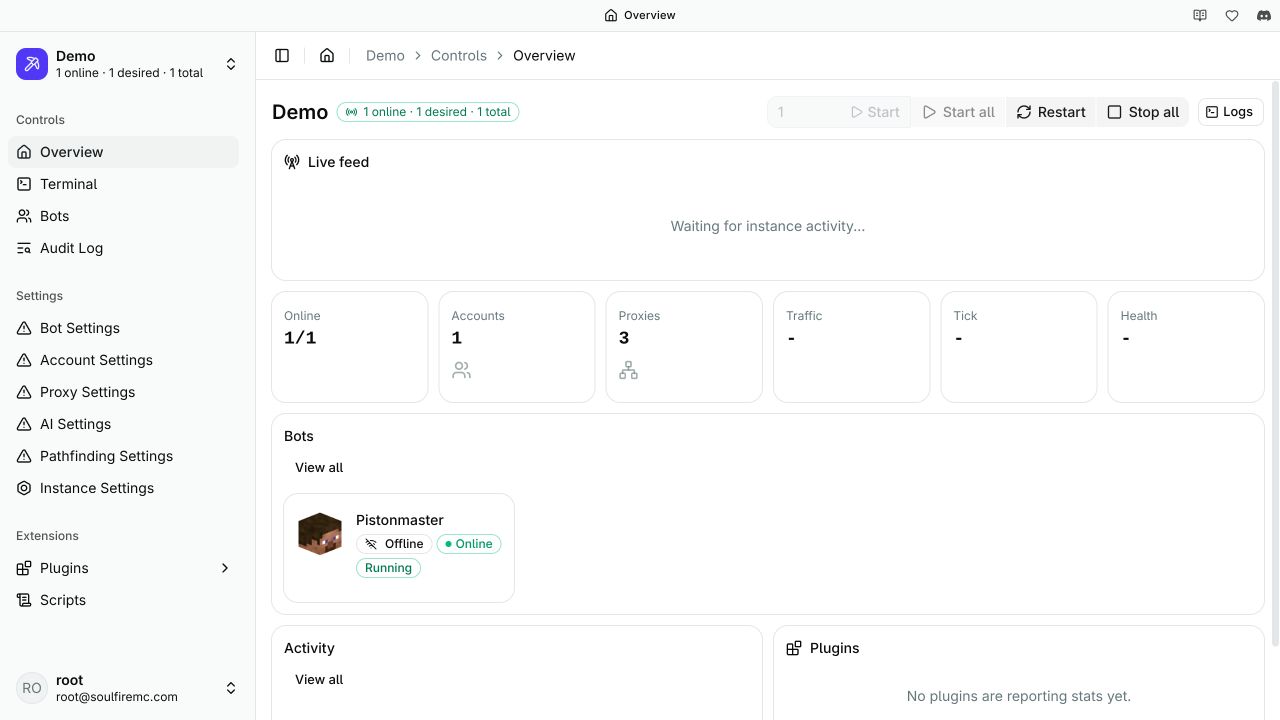
This screenshot uses the 2.10.1 demo client to identify the controls. Your tutorial instance will show DocsBot_1 instead of the demo account.
6. Send a message
Open the instance Terminal. Run:
bot DocsBot_1 say Hello from the SoulFire tutorialThe Minecraft server or your normal player must show the message from DocsBot_1.
The terminal runs SoulFire commands. say sends a Minecraft chat message through the selected bot.
7. Stop and check the result
Return to Overview. Stop DocsBot_1.
Check that its connected state clears and that it leaves the Minecraft player list.
Keep the instance if you want to use the SDK or scripting tutorials next.
Closing a client window is not a reliable stop procedure for a remote backend. The requested bot state belongs to the SoulFire server.
What you have learned
You created an instance, added an account, set a target, started a bot, sent chat, and stopped it. Next, run a small server test or build your first script. Use instance lifecycle to understand reconnects and saved bot state.
How is this page?
Last updated on