
GUI Navigation
Find the main areas of the SoulFire interface and where common tasks live.
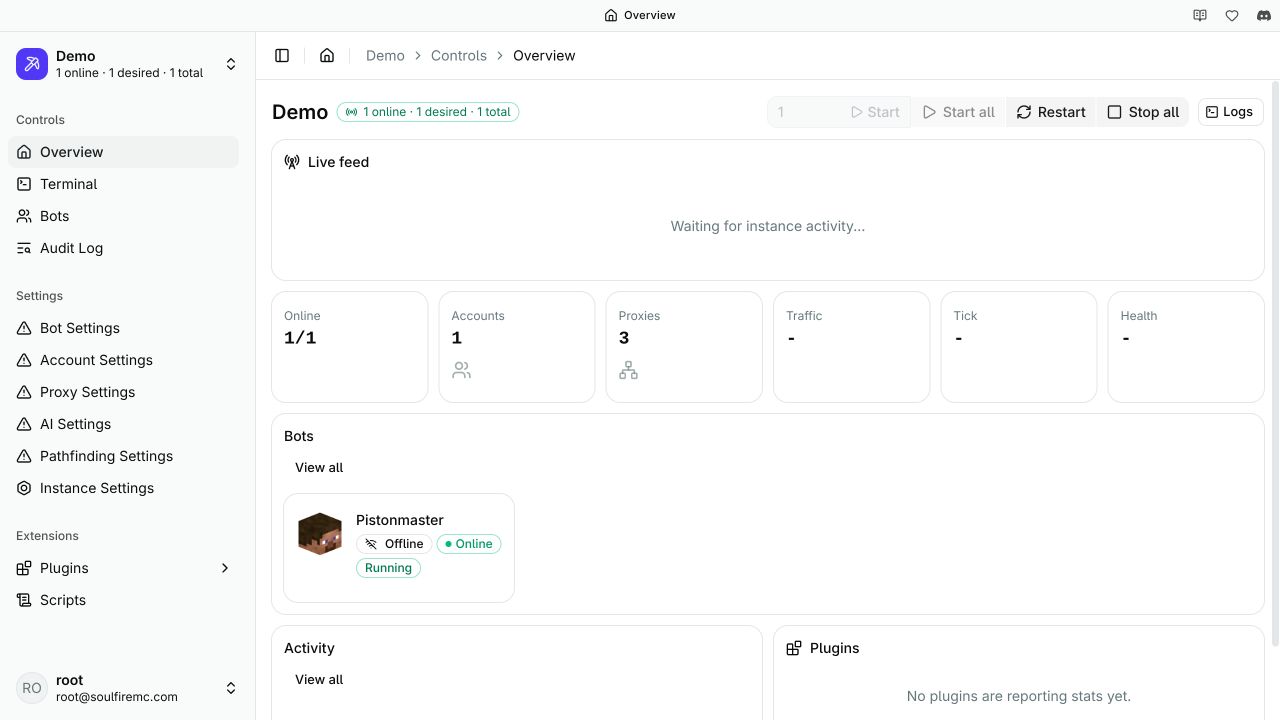
The screenshot shows demo data in client 2.10.1, which uses Instance. The updated app uses Project. Labels and available pages can differ with your permissions and version. See names and compatibility.
Top-level navigation
After you connect, the left sidebar shows personal pages. Users with admin permission also see server administration pages.
User section
| Area | Use it for |
|---|---|
| Projects | Create projects and open existing ones |
| Access | Manage access tokens and user-scoped access |
| Settings | Change personal client settings |
Admin section
These entries require admin access on the connected server.
| Area | Use it for |
|---|---|
| Overview | See server-wide status |
| Logs | Inspect server logs |
| Terminal | Run server-scoped commands |
| Users | Create users and manage permissions |
| Scripts | Manage server-scoped scripts when your setup uses them |
| Server Settings | Change server configuration |
| Dev Settings | Adjust advanced developer options |
Inside a project
Most day-to-day work happens inside a project.
Controls
| Area | Use it for |
|---|---|
| Overview | Start, restart, stop, and inspect individual bots or groups |
| Terminal | Run commands against that project |
| Audit Log | Review actions taken on the project |
Settings
| Area | Use it for |
|---|---|
| Bot Settings | Set server address, version, join delays, reconnect behavior, and timeouts |
| Account Settings | Import accounts and control how they are used |
| Proxy Settings | Import proxies and set proxy behavior |
| AI Settings | Configure AI-backed features |
| Project Settings | Edit project-specific metadata |
Automation and extensions
| Area | Use it for |
|---|---|
| Plugins | Enable or disable built-in plugins |
| Plugin Settings | Configure enabled plugins |
| Scripts | Build and manage visual automation for the project |
Control a bot through POV
Open Bot view to watch live video and control its native Minecraft interface. The viewer forwards keyboard, mouse, scroll, and text input, including inventory screens and dialogs. Opening Bot view requires read and control permissions and acquires exclusive bot control. The viewer releases control if its input heartbeat stops.
Personal preferences
- Use the theme toggle in the bottom-left corner to switch between light and dark mode.
- Use the language selector next to it to change the UI language when translations are available.
Related pages
- AI Support for AI providers, models, and built-in AI features
- GUI Mode to connect your first bots
- Import Accounts for account imports
- Import Proxies for proxy imports
- Automation to choose a scripting or SDK workflow
- Commands for terminal commands
Czy ta strona jest pomocna?
Ostatnia aktualizacja